SOP: Streamlined Webinar Registration, Reporting, and Access Granting in IMIS
Link to Loom
https://loom.com/share/3ba44c9e26fa48629337df289596bb4a
Objective
To standardize the process for handling webinar registrations so attendees are automatically tracked, identified, and granted access with minimal manual intervention. This SOP ensures webinar attendees are reported accurately, existing vs. new users can be identified quickly, and access is granted using the webinar ID as the code.
Key Steps
1. Confirm webinar registration creates the required records 0:19
Verify that each webinar registration automatically creates an activity record.
Confirm a contact record is created in IMIS if the registrant does not already exist.
Use this as the baseline process for all webinar signups so records are ready for reporting and access assignment.
2. Run the webinar attendee report 0:38
Go to Reports.
Open Event Reports.
Select the new Webinars folder.
Run Attendees by Events.
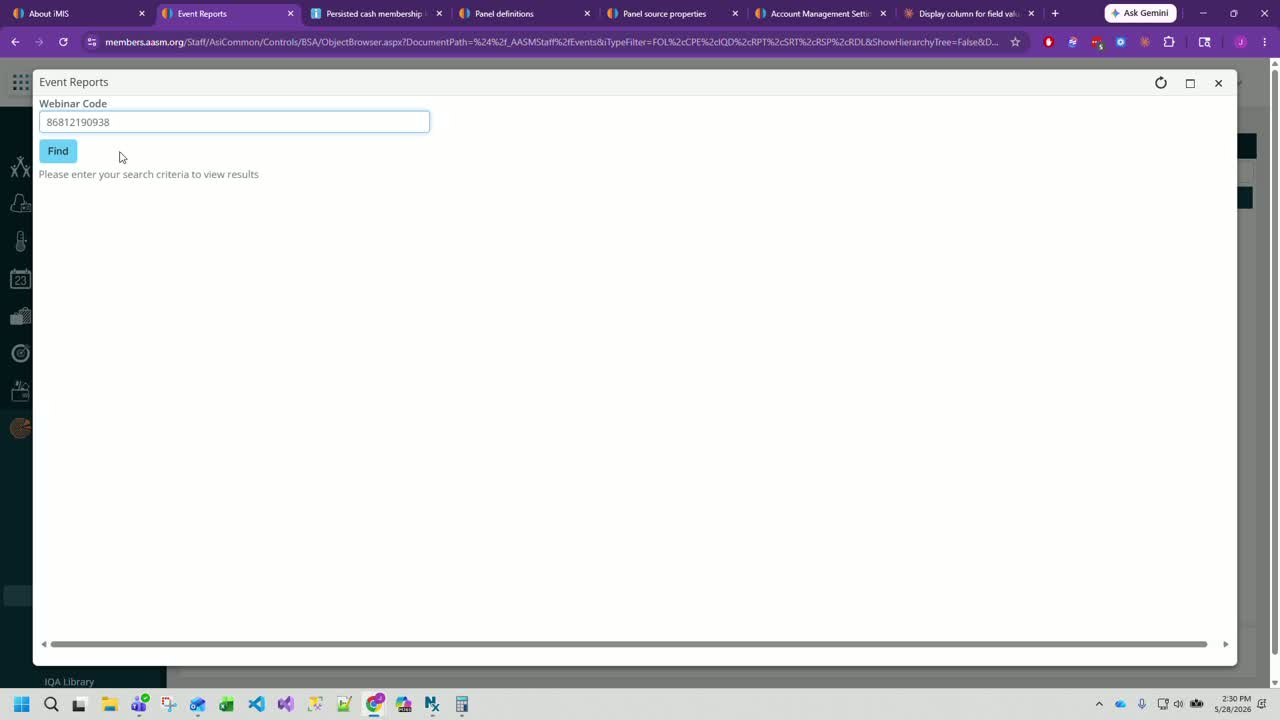
Enter the webinar ID/code in the report prompt.
Click Find to generate the attendee list.
3. Review attendee details for email outreach 1:03
Review the report output to confirm it includes all webinar registrants.
Use the report fields to identify each attendee by:
First Name
Last Name
Email Address
Use this report as the source list for webinar follow-up emails.
4. Identify existing users versus new users 1:19
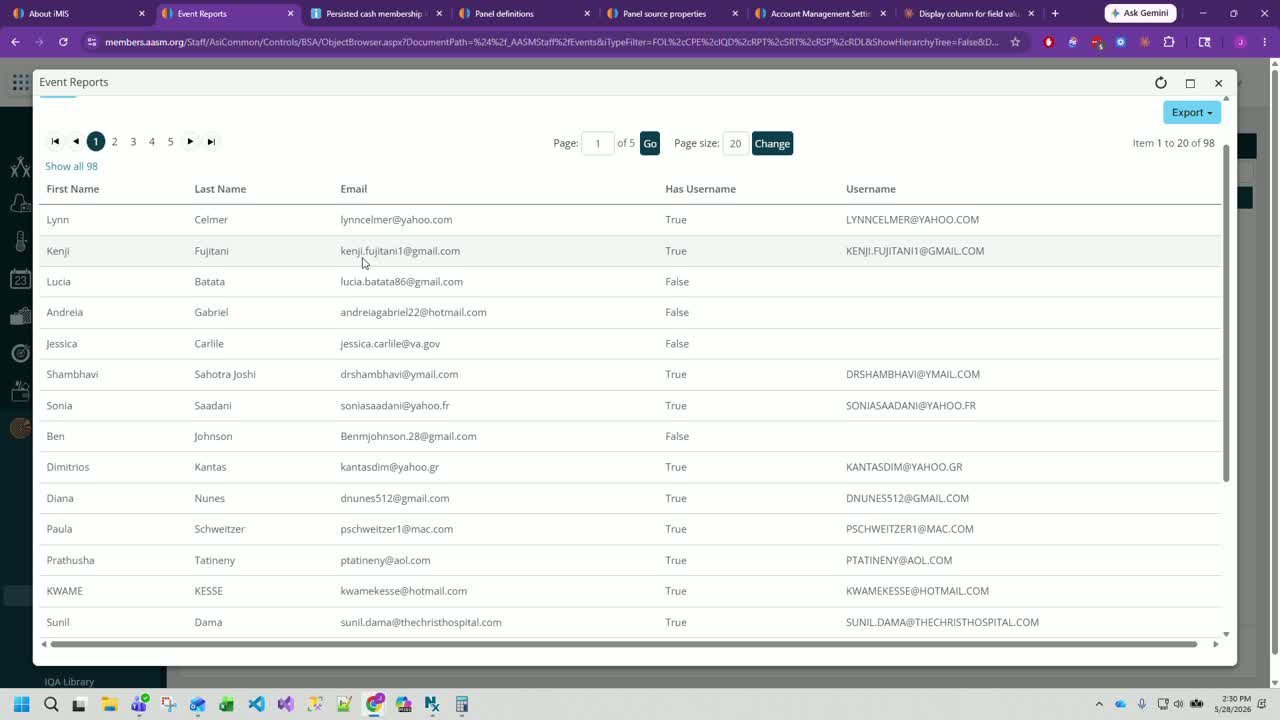
Check the Has Username field in the report.
Review the Username column to see whether the attendee already has an account.
Export the report to Excel or CSV if filtering is needed.
Filter by the username indicator to separate:
Existing users
New users
Cautionary Notes
Do not assume every registrant already has an IMIS account; verify using the Has Username field.
Ensure the webinar ID entered in the report is correct before exporting or emailing attendees.
If the report is exported, confirm the file is filtered correctly so the right email instructions are sent to each group.
The process now relies on the attendee using the Forgot Username flow rather than pre-created user accounts, so email instructions must be accurate.
Tips for Efficiency
Use the webinar report export to quickly sort attendees into existing and new users.
Include the Forgot Username link in the webinar email so new users can create their account without manual setup.
Use the webinar ID consistently as the code for access granting to avoid extra manual steps.
Place the webinar ID in either the product code or store code field, depending on the workflow configuration.
After saving the code, confirm that activity records linked to contacts carry the code so access can be granted automatically.
Was this article helpful?
That’s Great!
Thank you for your feedback
Sorry! We couldn't be helpful
Thank you for your feedback
Feedback sent
We appreciate your effort and will try to fix the article