Starting Monday, April 28, 2025, you will be able to follow the instructions below to set up MFA for you staff account in iMIS.
Step 1:
Log in to AASM iMIS OR Log in to SRS iMIS depending which one you are accessing.
Step 2:
Click "I don't have a security code"
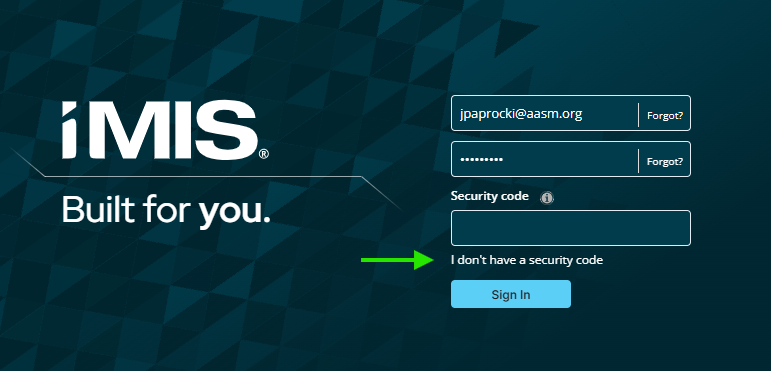
Step 3:
Click "Yes, send setup email" in the popup that comes up.
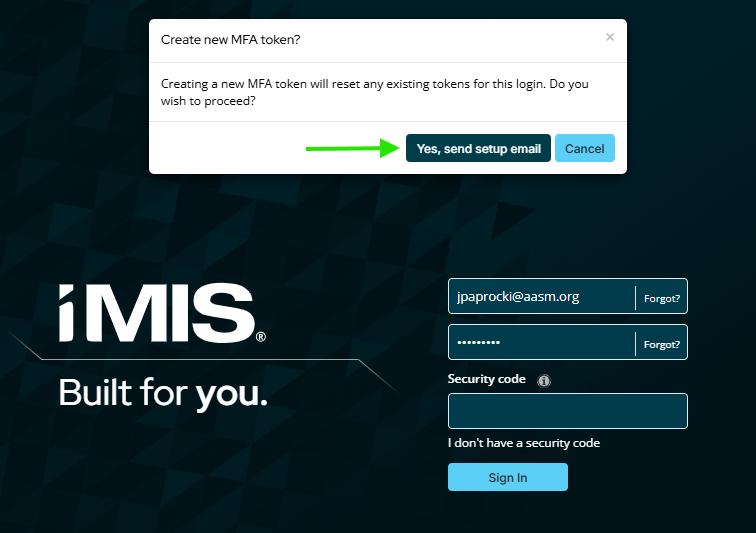
Step 4:
Step 4a: Scan the QR code using the Microsoft or Google Authenticator mobile app, depending on which one you use.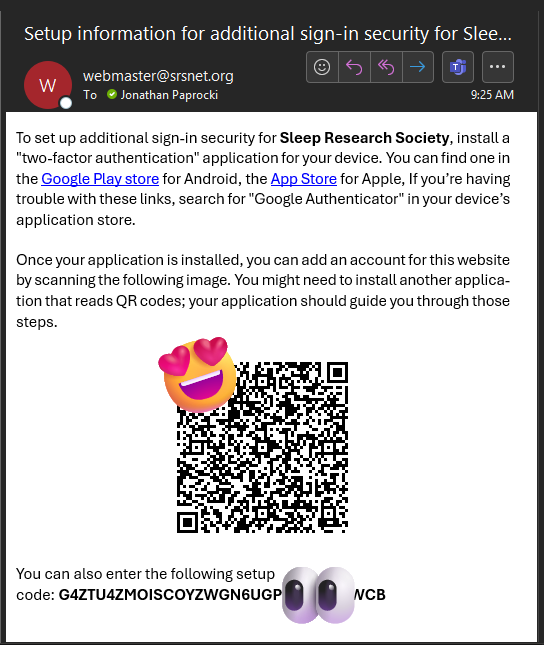
Example of email above.
Step 4b: Tap button in lower right in authenticator app to scan QR code from email. (see below)
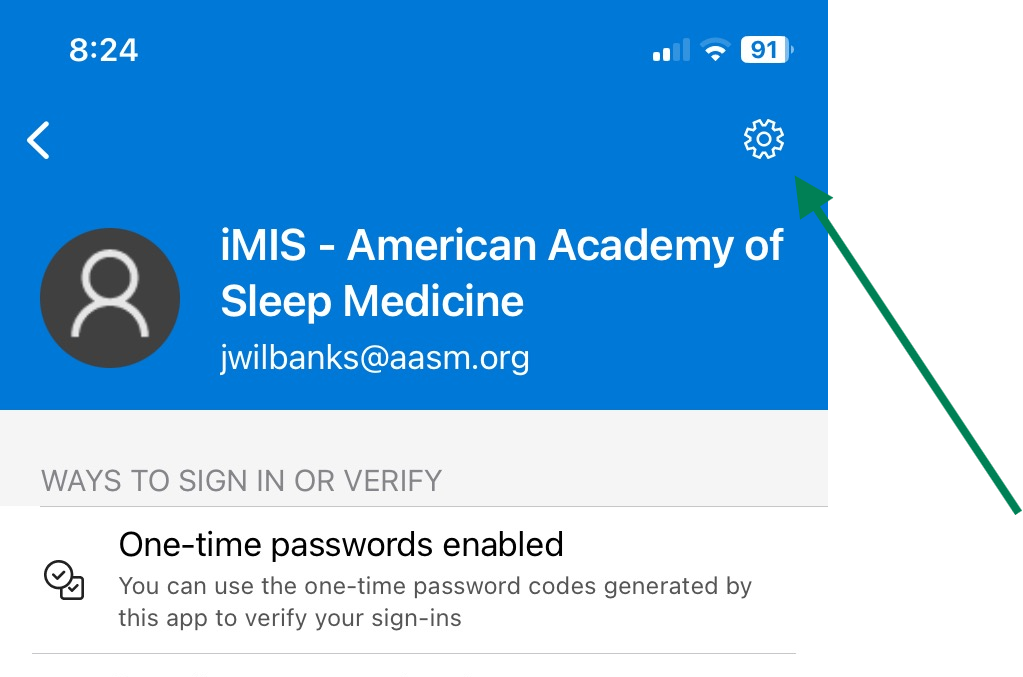
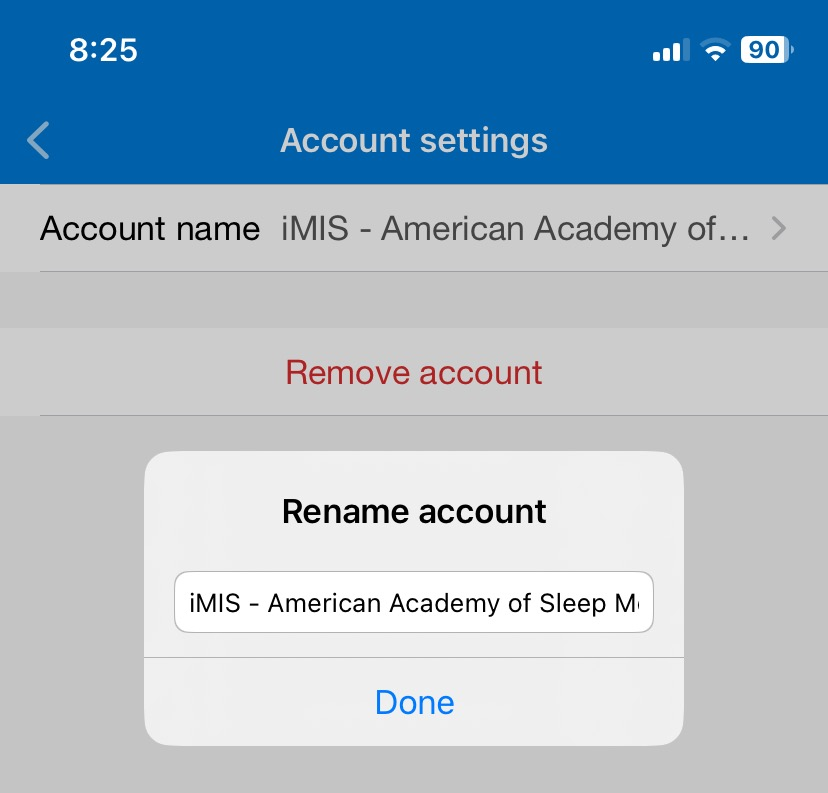
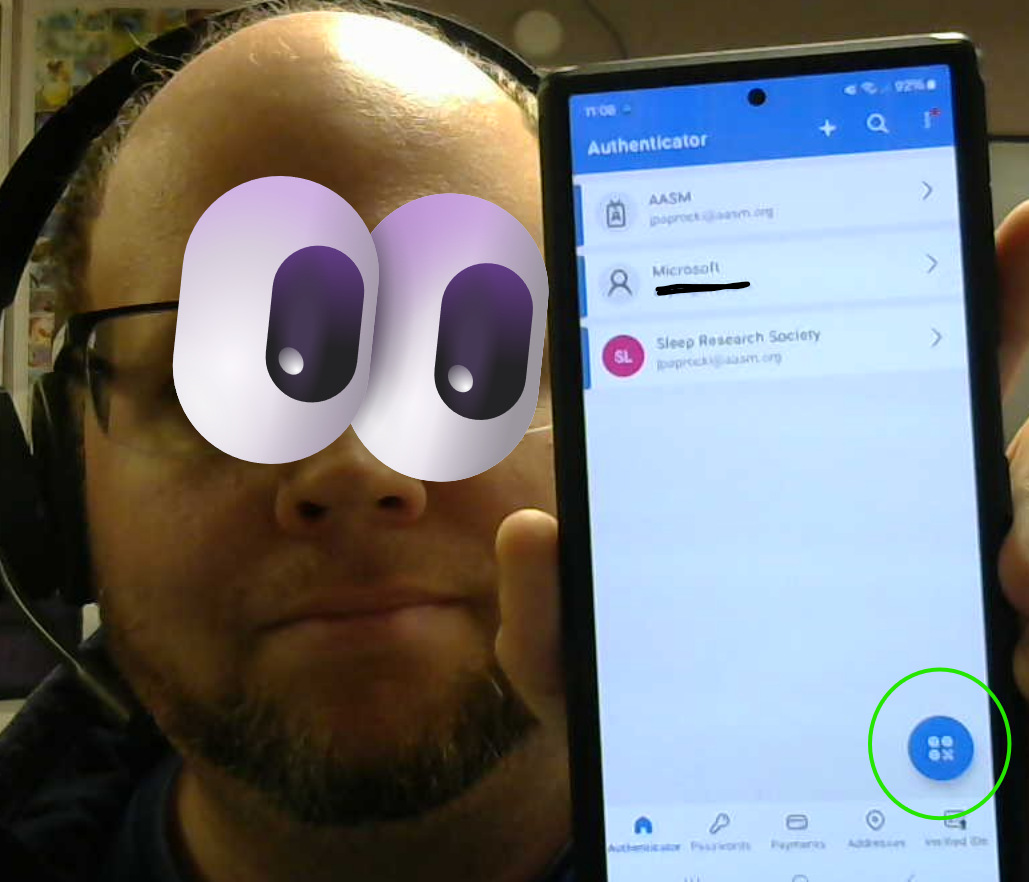 Step 4c: Tap the settings cog wheel in the upper right of the screen and rename the account to include "iMIS" at the beginning of the account name to help distinguish this account from other accounts. (By default it names it American Academy of Sleep Medicine which may be confusing if you have other accounts in your authenticator.)
Step 5:
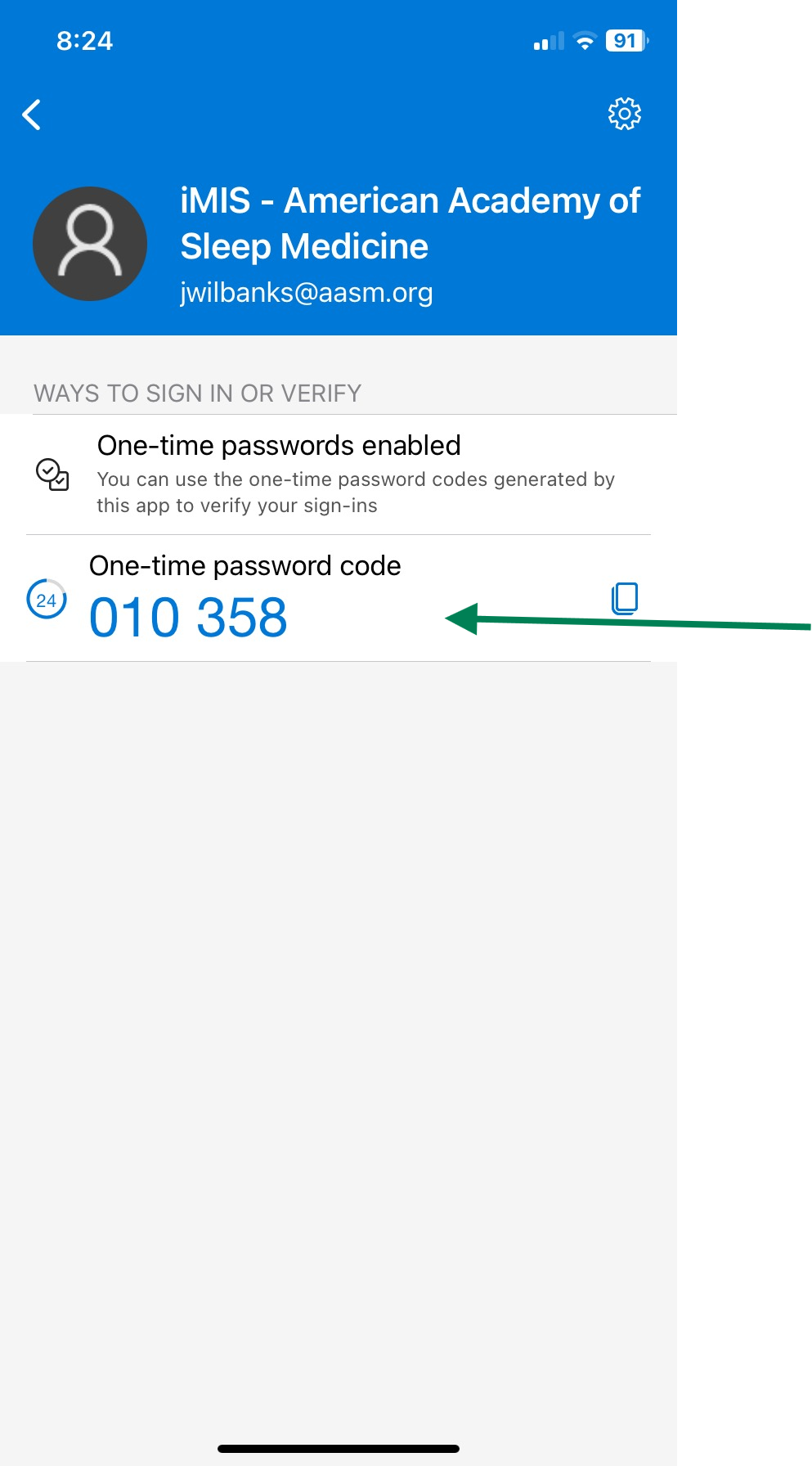
Copy "One-time password code" from authenticator app.
Step 6:
Paste code into "Security code" field back on iMIS login page and click "Sign in".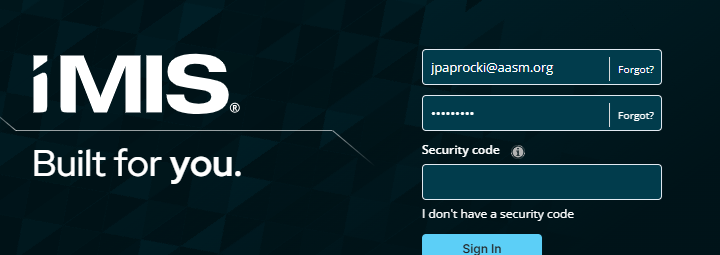
Was this article helpful?
That’s Great!
Thank you for your feedback
Sorry! We couldn't be helpful
Thank you for your feedback
Feedback sent
We appreciate your effort and will try to fix the article