SOP: Entering an Offline Gift into IMIS
Objective
This SOP explains how to enter a donation collected outside of IMIS into the system, create the gift batch, record donor and gift details, and submit the batch for accounting review. It ensures gifts are entered accurately and processed for posting.
Link to Loom
https://loom.com/share/749a8a34257346fbbcbefcc8316298e8
Key Steps
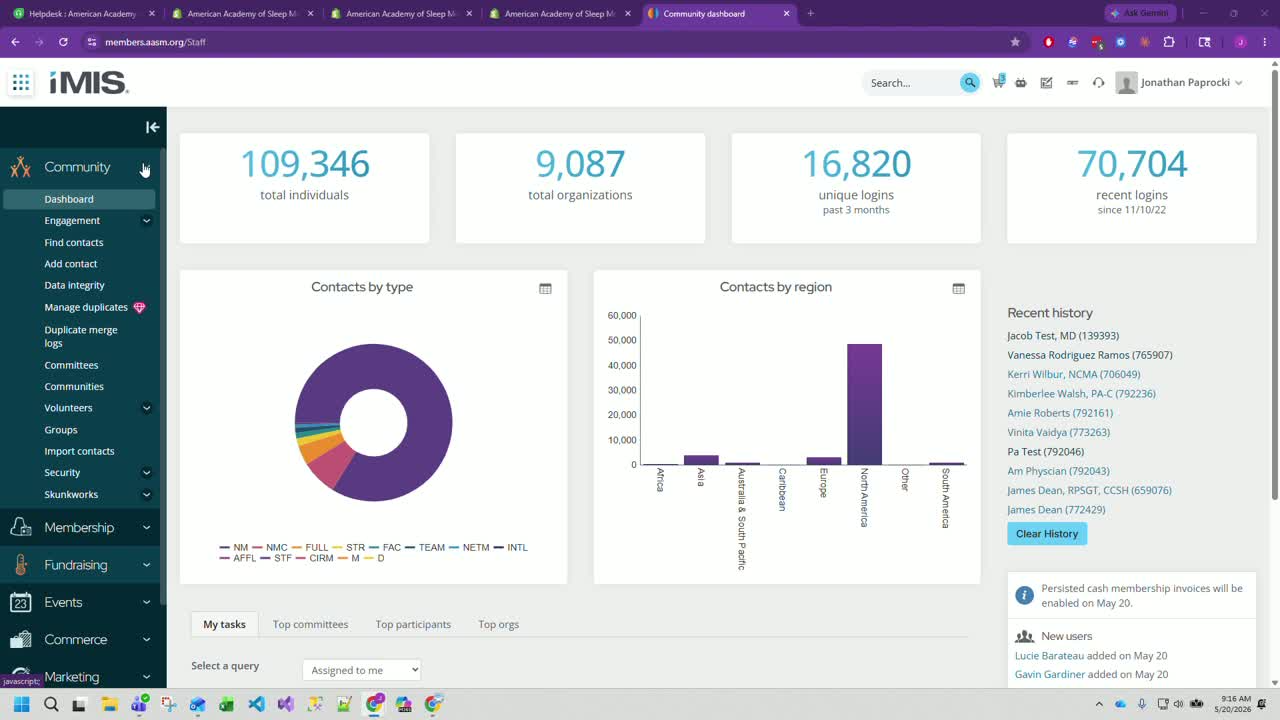
1. Open the Enter Gift screen in IMIS 0:14
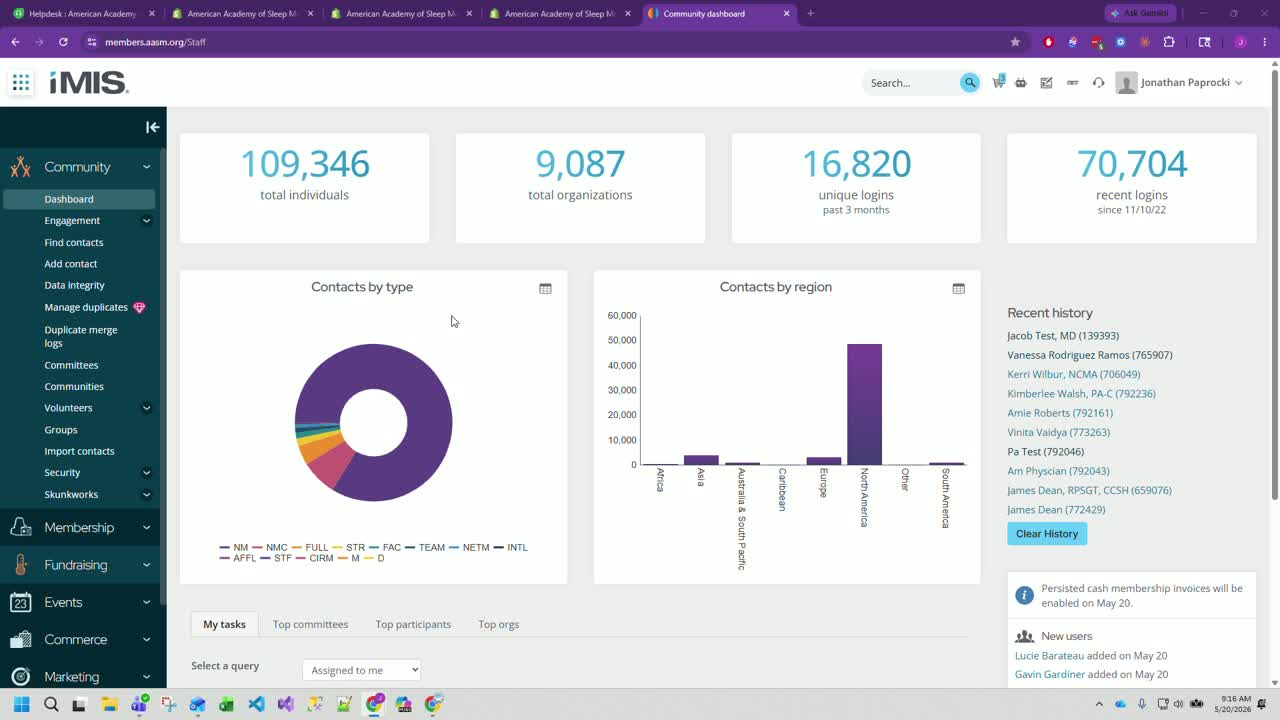
In IMIS, go to the Fundraising tab.
Select Enter Gift.
Use this process whenever a donation is collected outside of IMIS, such as:
A check received directly
A payment collected by another method
A donation not entered through a campaign donation page or existing IMIS donation workflow
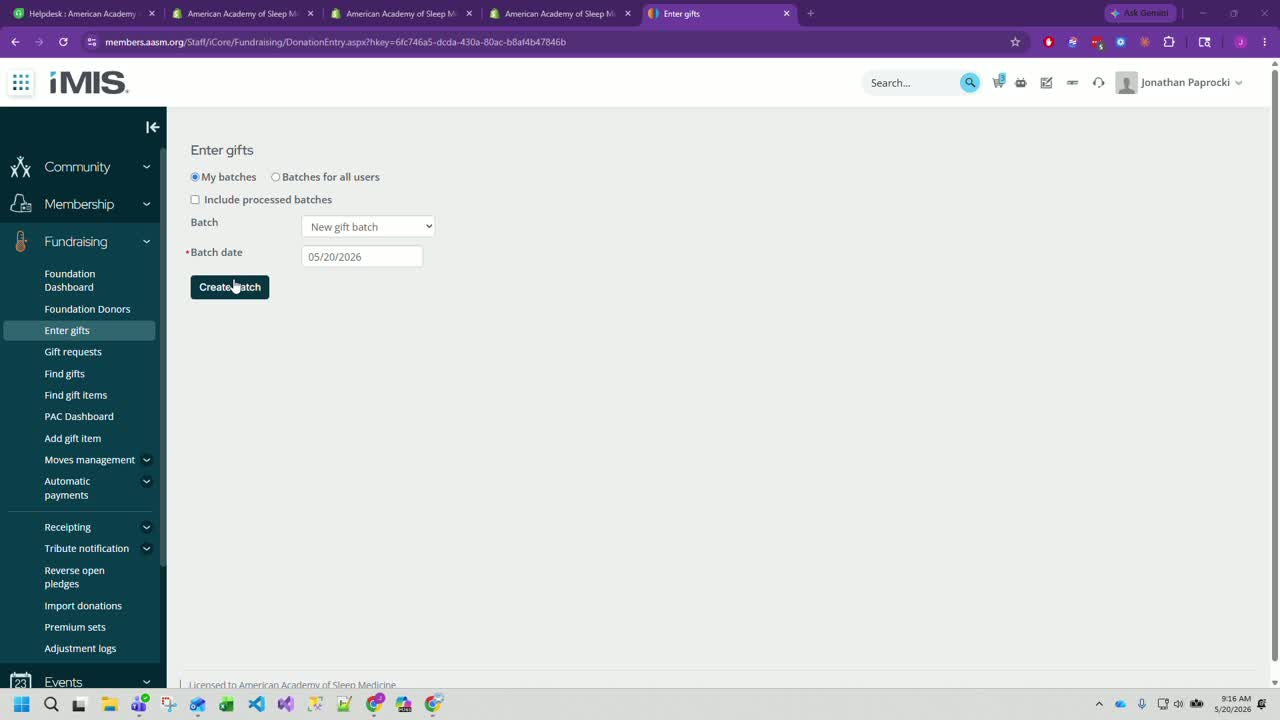
2. Create a new gift batch 0:29
Confirm New Gift Batch is selected.
Verify the batch date is set to today’s date.
Click Create Batch.
Confirm that the new batch appears on screen before continuing.
3. Locate and select the donor record 0:48
Search for the contact who made the donation.
Select the correct donor record from the results.
Verify the donor identity before entering gift details to avoid posting the gift to the wrong person.
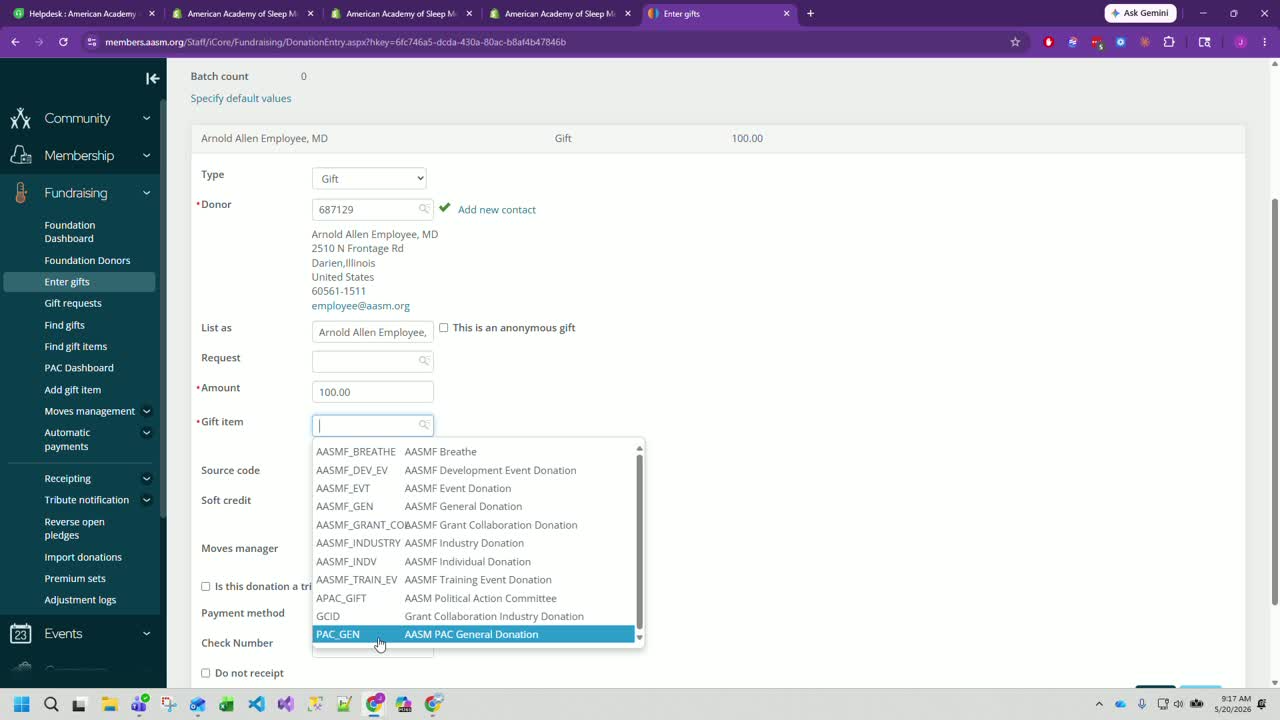
4. Enter the gift details 1:01
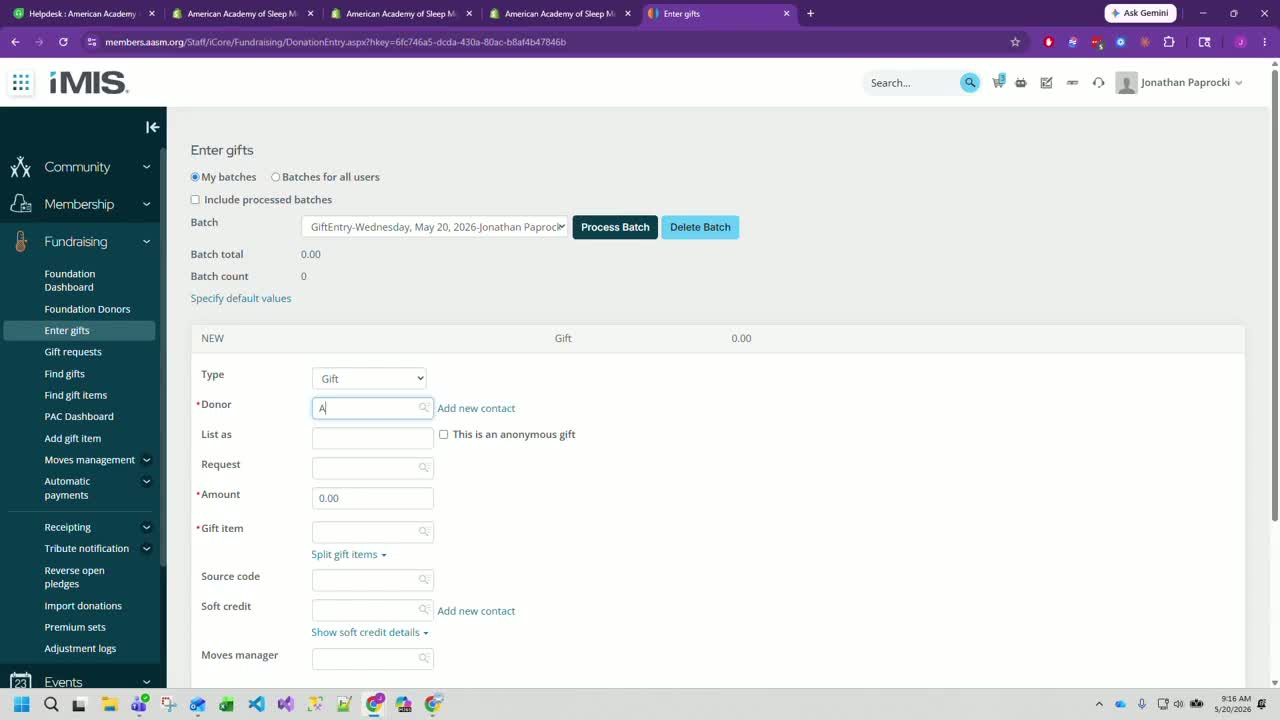
Enter the donation amount.
Select the appropriate fund or designation for the gift.
Example from the transcript:
Donor: Arnold Employee
Amount: $100
Fund: Pack General Donation
Make sure the gift is assigned to the correct fund before saving.
5. Add payment and receipt information 1:19
If the donation was made by check, enter the check number.
If the donation was made by another method, select the appropriate option such as in-kind if applicable.
Decide whether the donor should receive a receipt:
Leave receipt enabled if a receipt should be sent
Select the no-receipt option only when appropriate
6. Add tribute information if needed 1:43
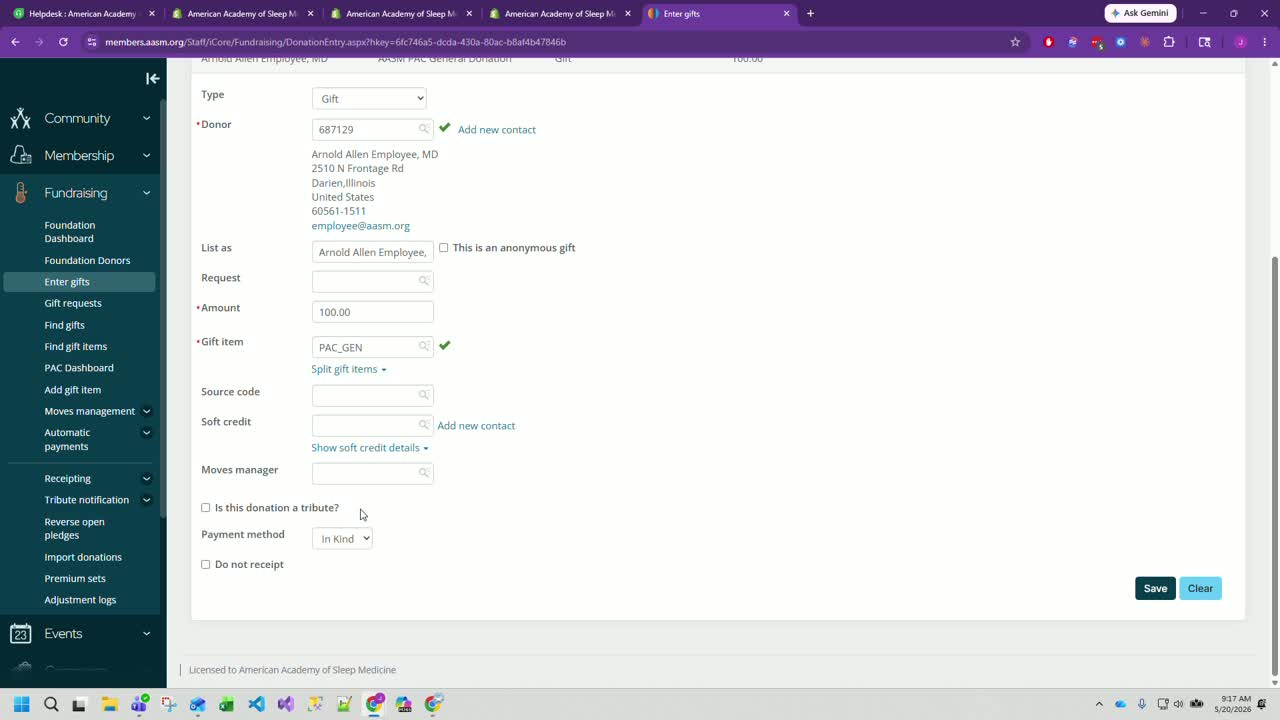
If the donation was made in tribute to someone, select the tribute option.
Complete the required tribute fields.
Confirm the tribute details are accurate before saving.
7. Save the gift record 1:54
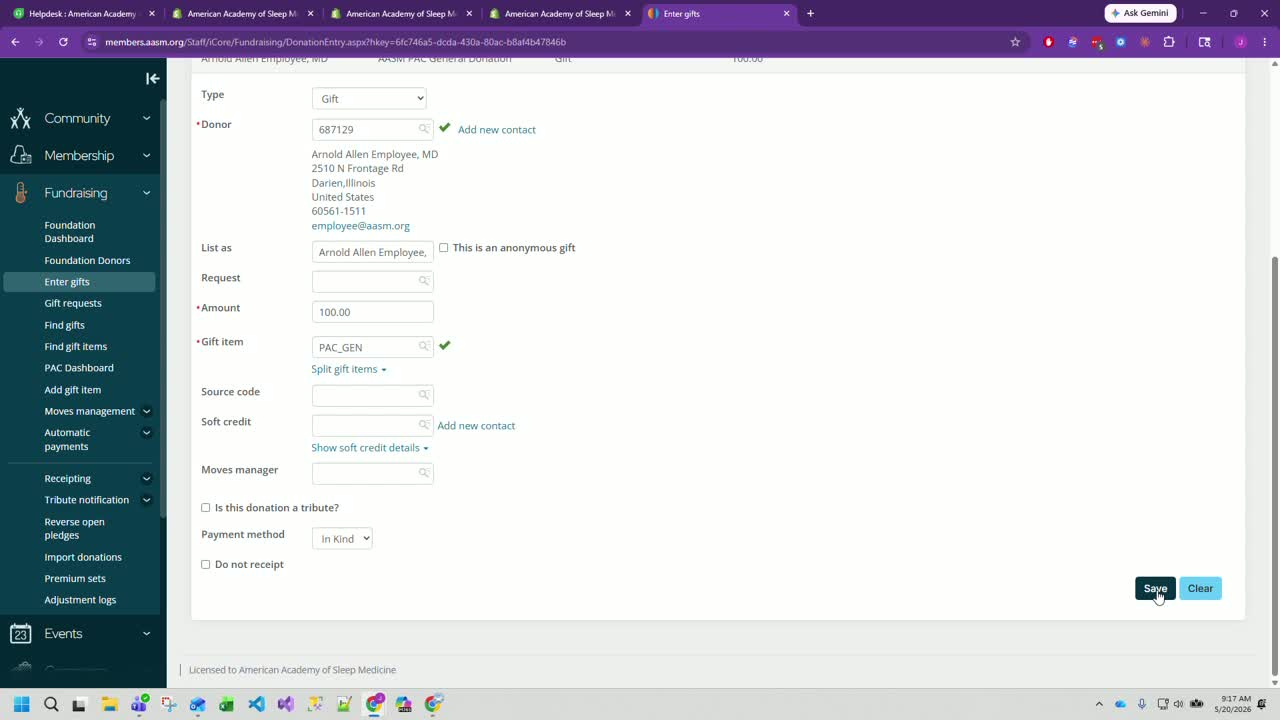
Review all entered information for accuracy.
Click Save.
Confirm the gift appears in the batch list after saving.
Example result shown in the transcript:
Arnold Employee
$100
8. Process the batch for posting 2:13
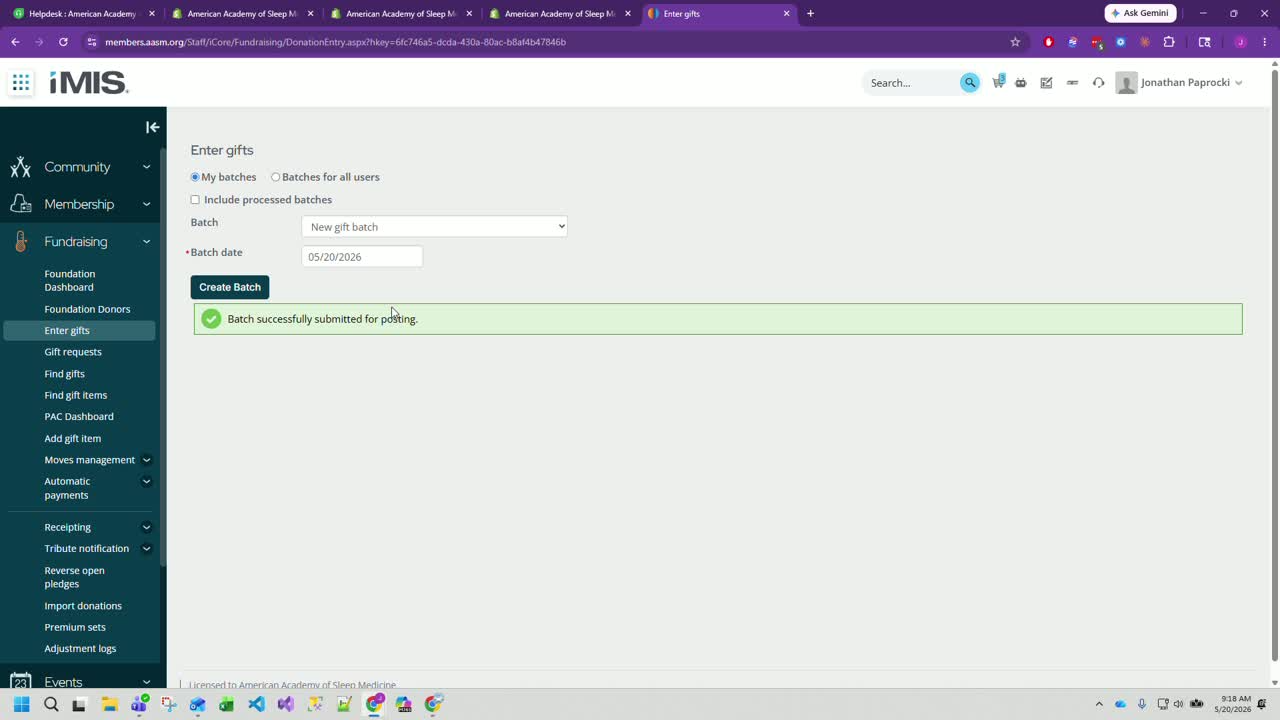
When all gifts in the batch have been entered, click Process Batch at the top of the screen.
Confirm the batch is submitted for posting.
After submission, accounting will complete the remaining processing steps.
Cautionary Notes
Verify the donor record carefully before saving to prevent misapplied gifts.
Confirm the fund/designation is correct, since this determines where the donation is allocated.
Enter check numbers only when the gift was actually received by check.
Only disable receipts when the donor should not receive one.
Review tribute fields carefully, as incorrect tribute information may affect donor communication and records.
Once the batch is processed, changes may require additional accounting support.
Tips for Efficiency
Have the donor name, gift amount, payment method, and fund ready before starting.
Use the current date when creating the batch to keep entries organized.
Save after each gift entry to reduce the risk of losing work.
Process the batch only after all gifts for that batch have been entered and reviewed.
If entering multiple gifts, complete one record at a time and verify each before moving on.
Was this article helpful?
That’s Great!
Thank you for your feedback
Sorry! We couldn't be helpful
Thank you for your feedback
Feedback sent
We appreciate your effort and will try to fix the article