This document was created to instruct the extra steps to setting up a sleep disorders page on sleepeducation.org
This is an example page following the setup of the "Insomnia" sleep disorder page
Setting up the PageTemplate and Content
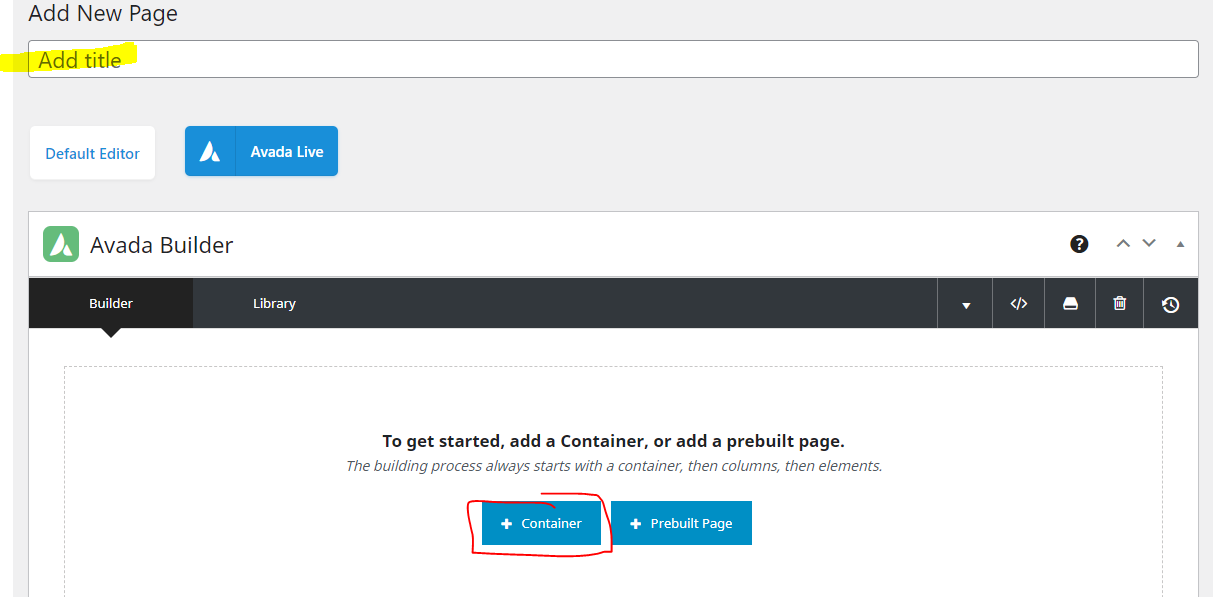
- Add a page title, then add a new container
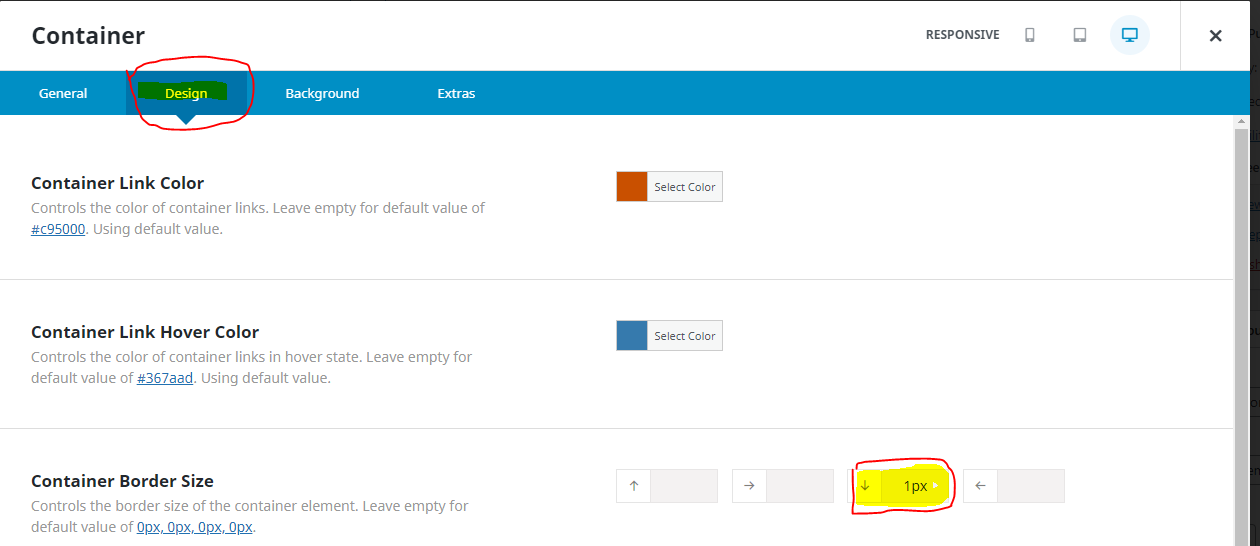
- Edit the container, go to the design tab and enter "1px" for the bottom container border size and save

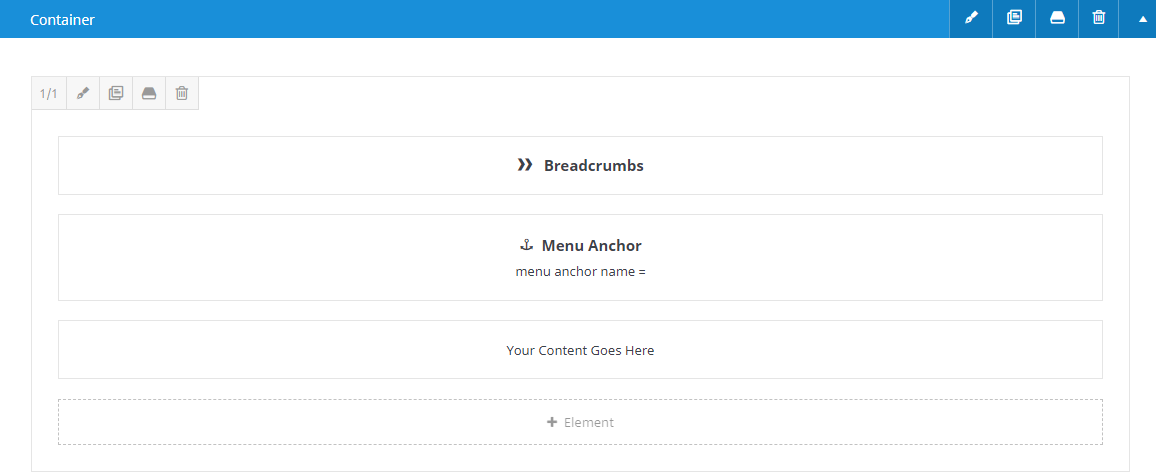
- Add the first three elements to the page, Breadcrumbs, Menu Anchor, Text Block
- Edit the Menu Anchor in the name write "what-is-(insert sleep disorder)" then Save
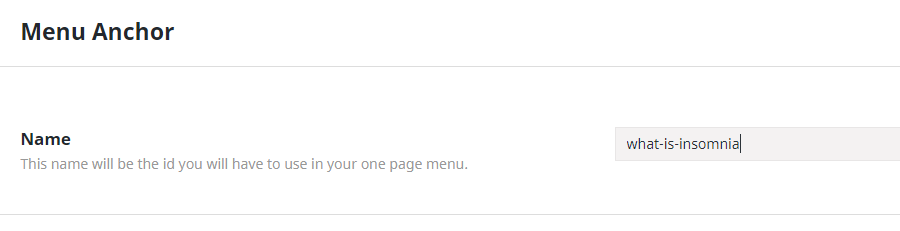
- Edit the Menu Anchor in the name write "what-is-(insert sleep disorder)" then Save
- Add the first section content by editing the text block
- Add this html text to the top of the text editor and replace the corresponding information with data for your page:
- <h6><em>September 2020 | Reviewed by</em><em>: Andrea Matsumura, MD and Virginia Skiba, MD</em></h6>
<h2>What is Insomnia?</h2>
Be sure to replace the month, year, and reviewer names as well as the sleep disorder name
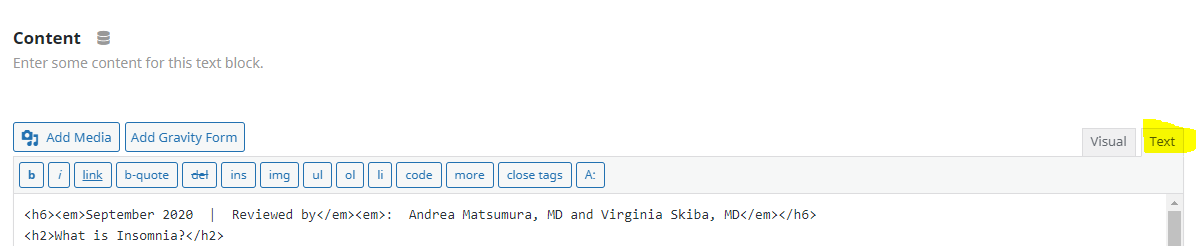
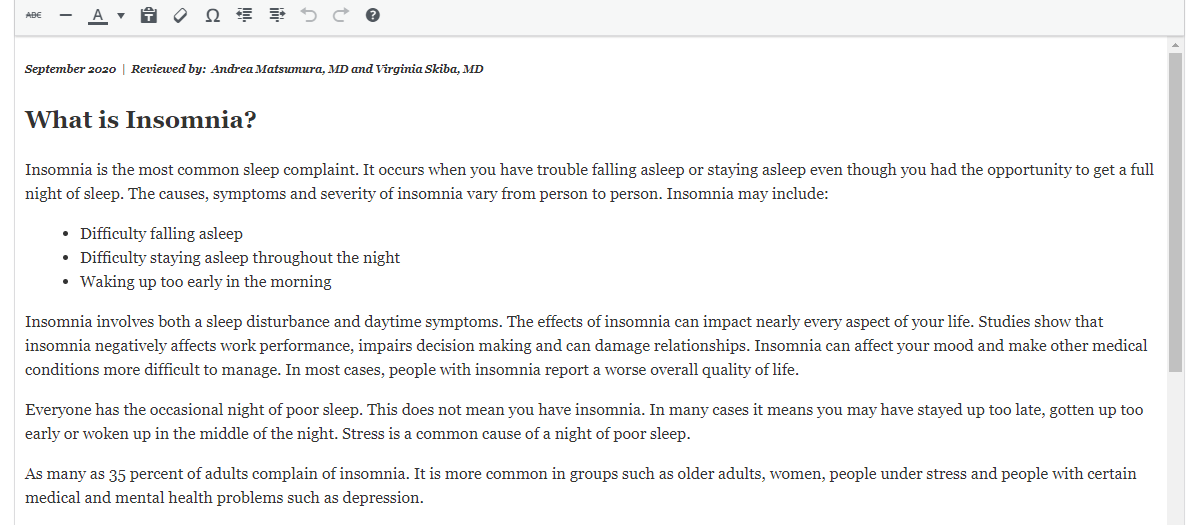
Click "visual" and your text should look like this:

add text that is relevant ONLY to the "What Is ____" section which is generally just defining the disorder and Save (should look like below)
Add a new container
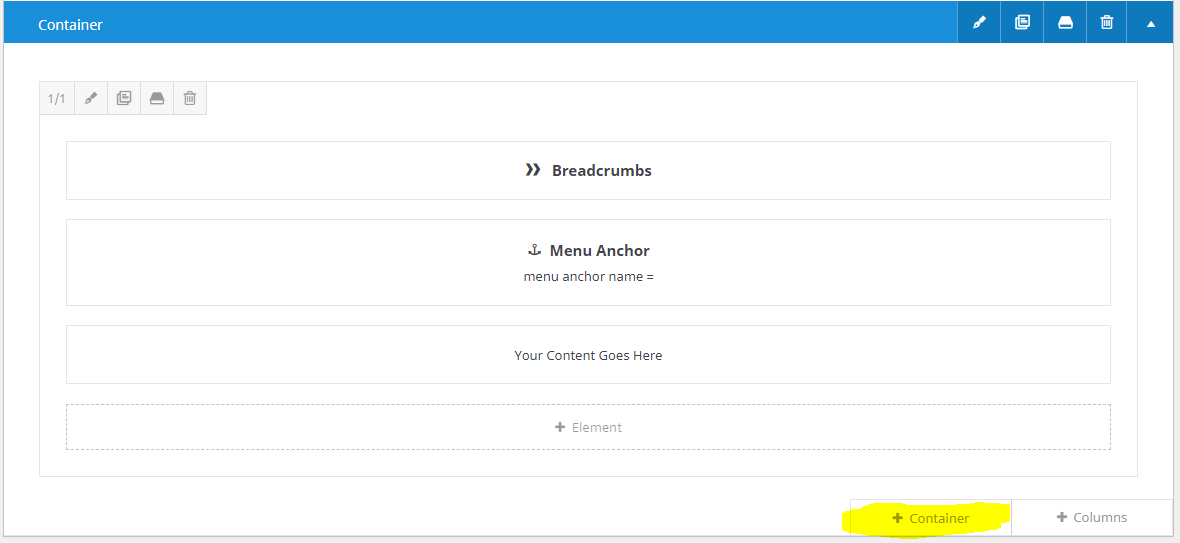
Again, Edit the container, go to the design tab and enter "1px" for the bottom container border size and save
add a Menu Anchor and Text Blockto the new Container (should look similar to below)
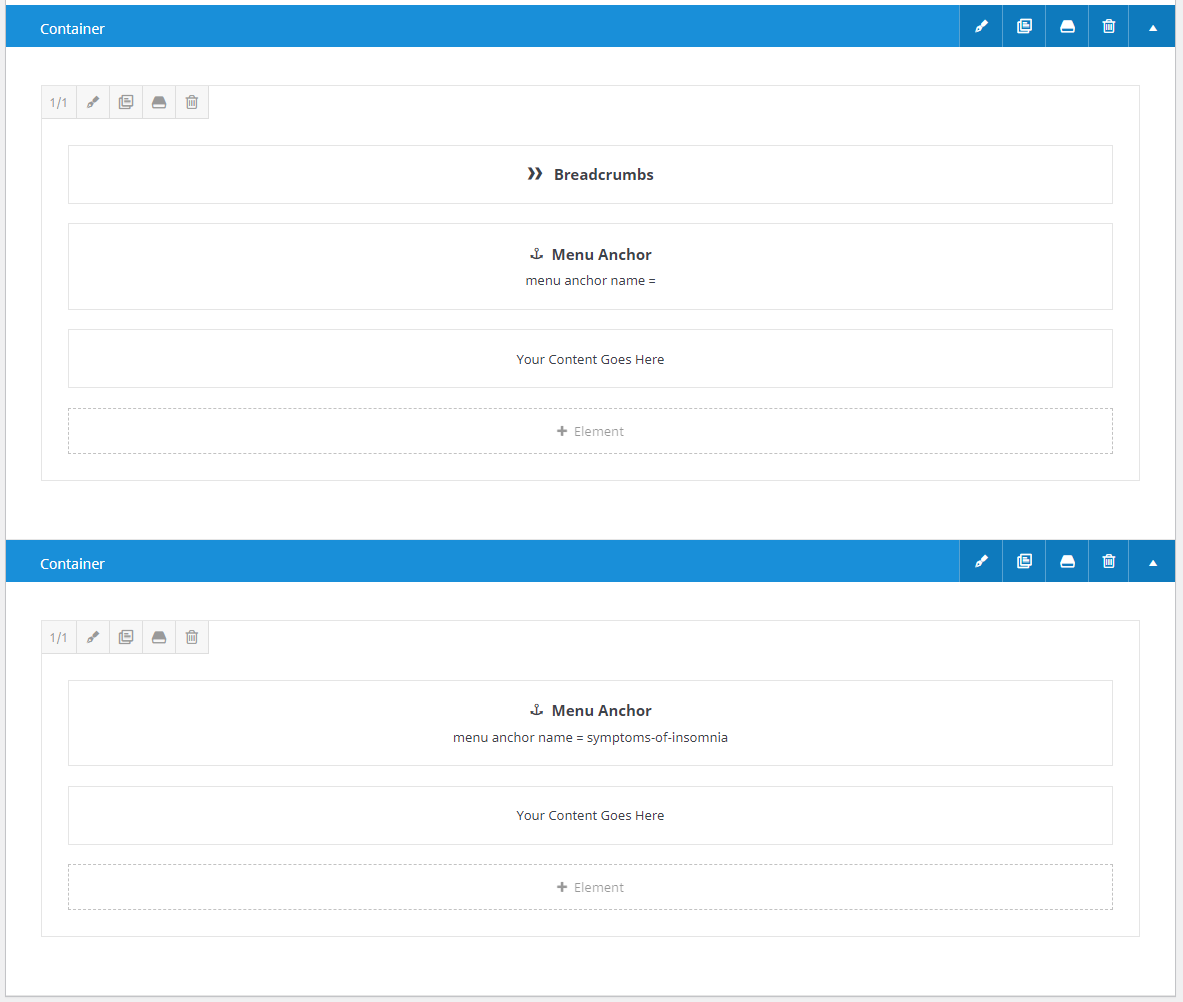
Repeating some steps from before, add the Menu Anchor Name, for insomnia it would be "symptoms-of-insomnia" and Save
Phrase each section topic as a question "What is __", "What are treatments of __" etc
Then add content for the symptoms of the sleep disorder. Begin each new section with an h2 header "What are the symptoms of Insomnia?" and then proceed to add relavent content
Repeat steps 5-7 until all content has been added. When you are finished, you should have several containers on the page, and each container will pertain to a single question being answered (go and edit the insomnia page for a good example of how this should look).
Setting Up the Title Banner
- Go to the bottom of the page to "Avada Page Options" and select the page title bar
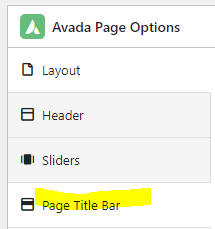
- Select "show bar and content" for the Page Title Bar setting

- Set the "Page Title Bar Height" to 250px

- Set the "Page Title Bar Background" by browsing and selecting the banner image that was created for the page

- set the "100% Background Image" to "Yes"

Setting the sidebar
- Save the page that you are currently working on
- Navigate to the left side of the page and select appearance > Menus
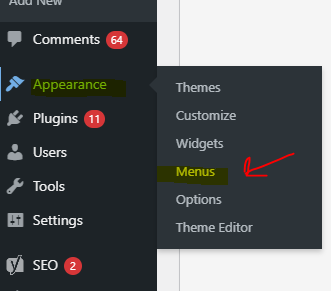
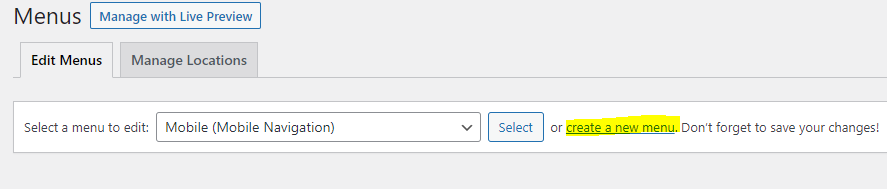
- Create the on-screen menu for the page, click "create a new menu" at the top, and name it at the top
- For each section add a custom link to the new menu that was just created
- The URL will ALWAYS start with a "#" and then just add each anchor custom name
- for example, if the first section's Menu anchor was "what-is-insomnia" then you will put "#what-is-insomina"
- The Menu Anchor is used to navigate a user to a different section of the page depending on what topic they want to read about (If you go to the insomnia page and click on some of the links there, your screen will be directed to that particular section)
- For the Link Text section, the first two words of the link will be bolded so it will look something like this: <strong>What is</strong> insomnia?
- Click add to menu
- SEE THE EXAMPLE BELOW
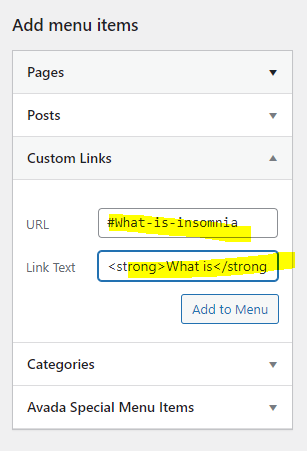
- Add each menu item until complete, then save the menu at the bottom right side of the page
- Navigate back to editing the page that you were working on
- Scroll to the bottom of the page and find avada options again, and select "Sidebars"
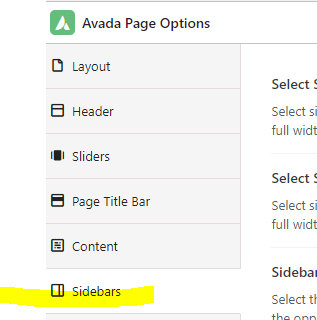
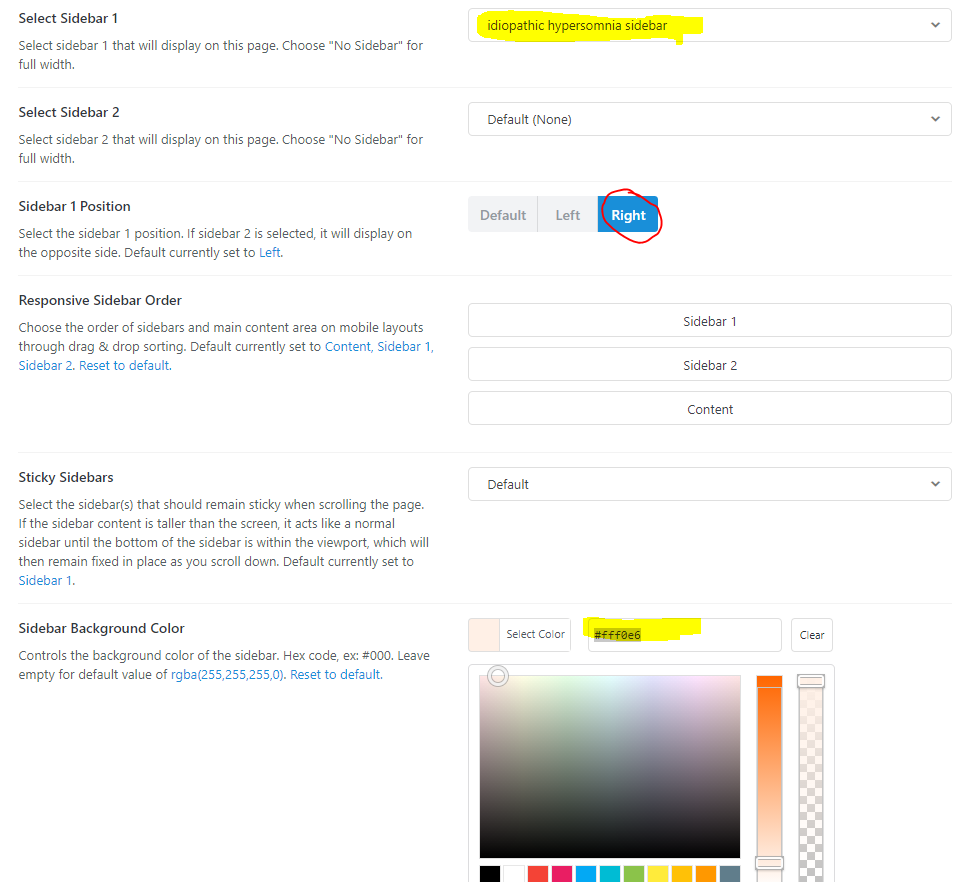
- In the first section on the right where it says "Select Sidebar1", click the dropdown menu and search for the menu that was just created (you may need to save and refresh your webpage for it to appear (See example)
- Under the sidebar position, select Right (see example)
- For the sidebar background color use this color code and past it into the box next to "select Color" #fff0e6
SEE EXAMPLE BELOW
- The URL will ALWAYS start with a "#" and then just add each anchor custom name
- Save the page, it should look something like this page: https://sleepeducation.org/sleep-disorders/insomnia/
Checking the page
You can view an example page at: https://sleepeducation.org/sleep-disorders/insomnia/
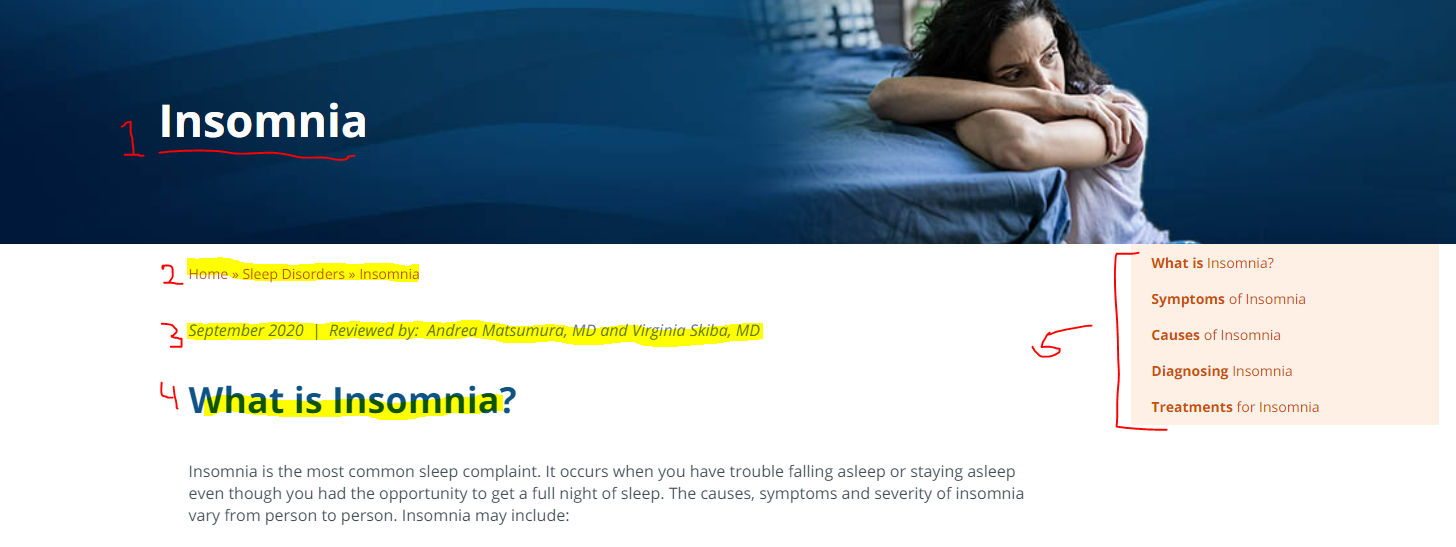
- You should notice several things right away (using the image below):
- the page banner should appear, and the title with it
- the breadcrumbs should appear
- the date the page was last reviewed and by whom should appear
- the title of EACH section should be an h2 heading in blue and they should ALL be in question format
- the sidebar menu should appear, be sure to click on EACH sidebar link to make sure that the link directs your screen to that location
Was this article helpful?
That’s Great!
Thank you for your feedback
Sorry! We couldn't be helpful
Thank you for your feedback
Feedback sent
We appreciate your effort and will try to fix the article